#Day 27 Task: Jenkins Declarative Pipeline with Docker
Use your Docker Build and Run Knowledge
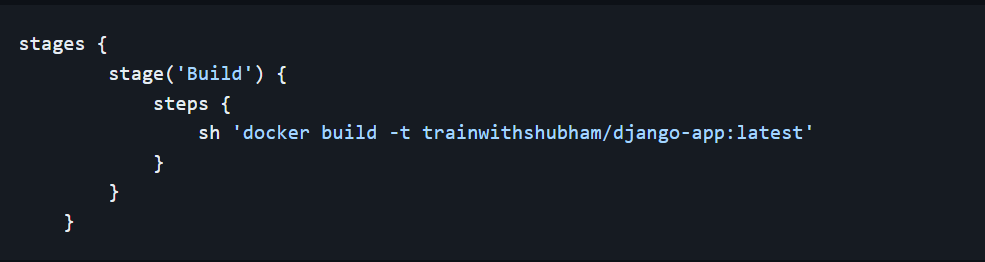
docker build - you can use sh 'docker build . -t <tag>' in your pipeline stage block to run the docker build command. (Make sure you have docker installed with correct permissions.
docker run: you can use sh 'docker run -d <image>' in your pipeline stage block to build the container.
How will the stages look
Task 1:
Create a docker-integrated Jenkins declarative pipeline
Use the above-given syntax using sh inside the stage block
You will face errors in case of running a job twice, as the docker container will be already created, so for that do task 2
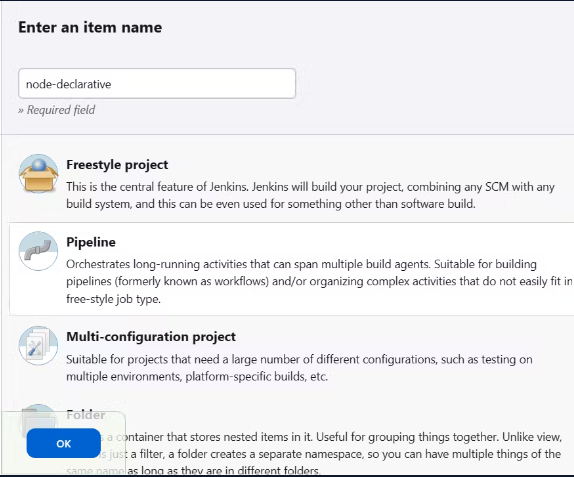
Step1: Create a new pipeline project and named it node declarative
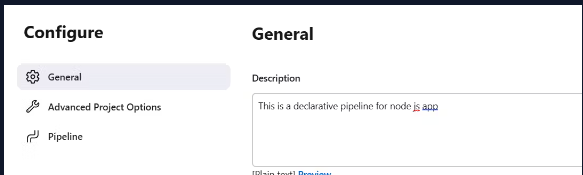
Step2:- Now in the "Project Configuration" section, we have to define a pipeline script in the definition.
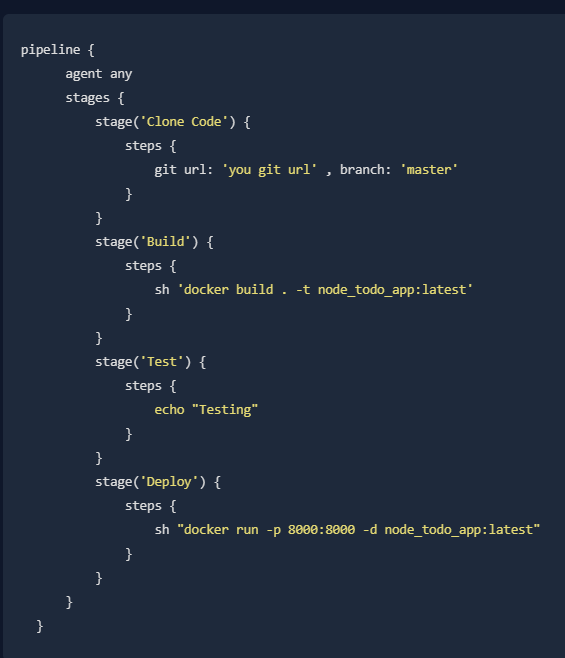
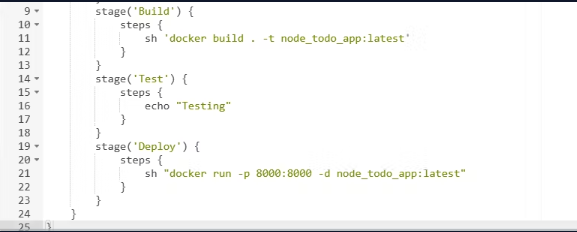
Step3:-Click on Save and Build the application.
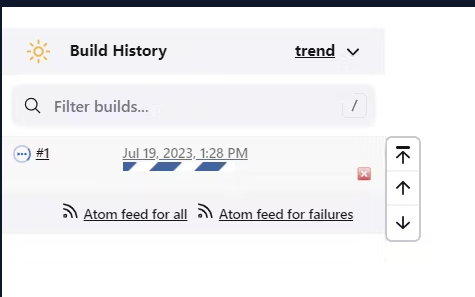
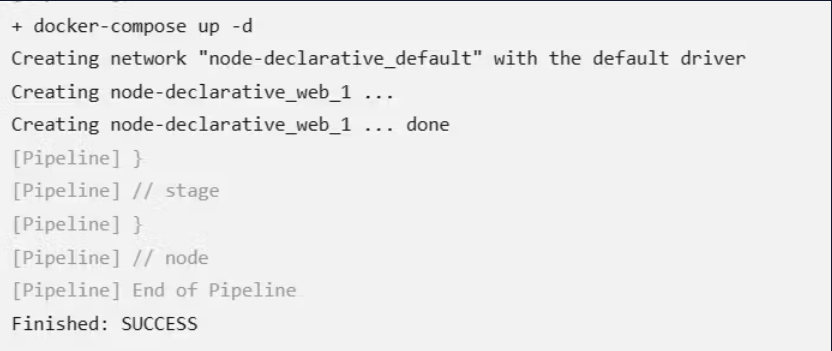
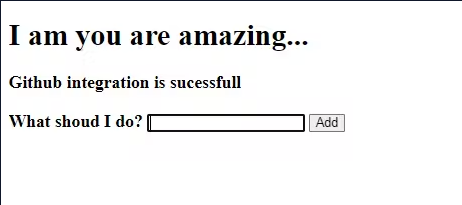
Step4:-Once the build is completed we can check in the Console Output. We can see the pipeline is successful.
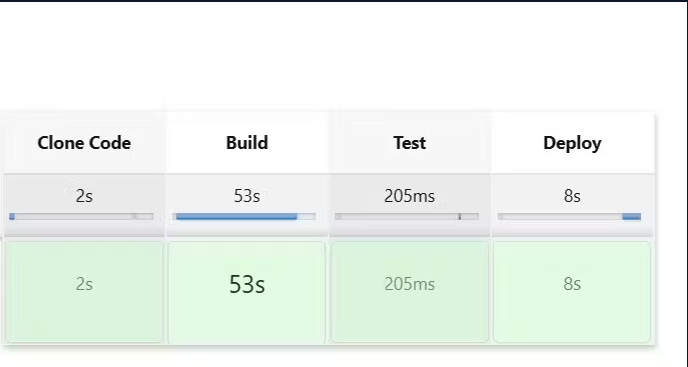
Step5:-Now you check the multi-stage view by clicking on the “Full Stage View” on the project main page
Task 2:
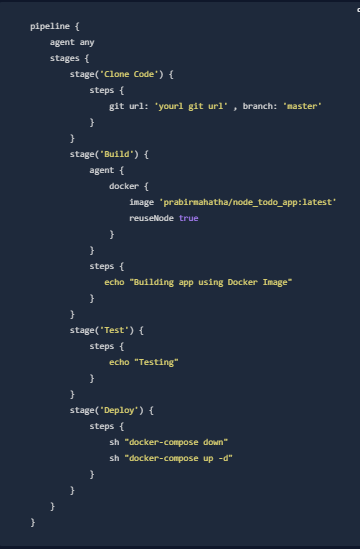
Create a docker-integrated Jenkins declarative pipeline using the docker groovy syntax inside the stage block.
You won't face errors, you can Follow this documentation
Complete your previous projects using this Declarative pipeline approach
Step1:-Now we have to add a docker image in the Build stage
Step2:-Click on Save and then click on Build Now.