#Day 40 AWS EC2 Automation
Automation in EC2:
Amazon EC2, or Amazon Elastic Compute Cloud, can give you secure, reliable, high-performance, and cost-effective computing infrastructure to meet demanding business needs.
Launch template in AWS EC2:
You can make a launch template with the configuration information you need to start an instance. You can save launch parameters in launch templates so you don't have to type them in every time you start a new instance.
For example, a launch template can have the AMI ID, instance type, and network settings that you usually use to launch instances.
You can tell the Amazon EC2 console to use a certain launch template when you start an instance.
Instance Types:
Amazon EC2 has a large number of instance types that are optimized for different uses. The different combinations of CPU, memory, storage and networking capacity in instance types give you the freedom to choose the right mix of resources for your apps. Each instance type comes with one or more instance sizes, so you can adjust your resources to meet the needs of the workload you want to run.
AMI:
An Amazon Machine Image (AMI) is an image that AWS supports and keeps up to date. It contains the information needed to start an instance. When you launch an instance, you must choose an AMI. When you need multiple instances with the same configuration, you can launch them from a single AMI.
Task1:
Create a launch template with Amazon Linux 2 AMI and t2.micro instance type with Jenkins and Docker setup.
Open the Amazon EC2 interface.
Choose "Launch Templates" from the left navigation pane.
Choose "Create launch template" to start.
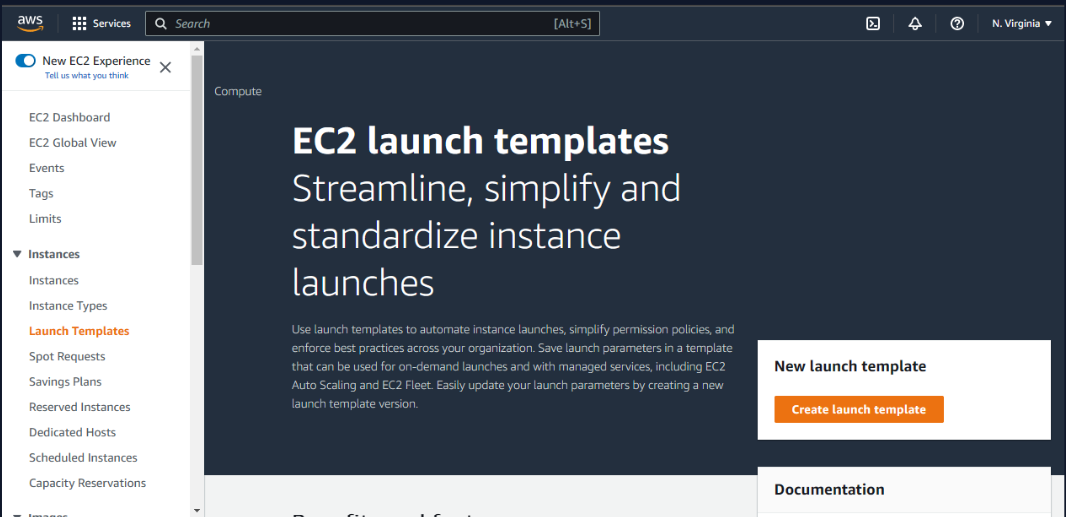
Give the launch template a name on the "Create a launch template" tab.
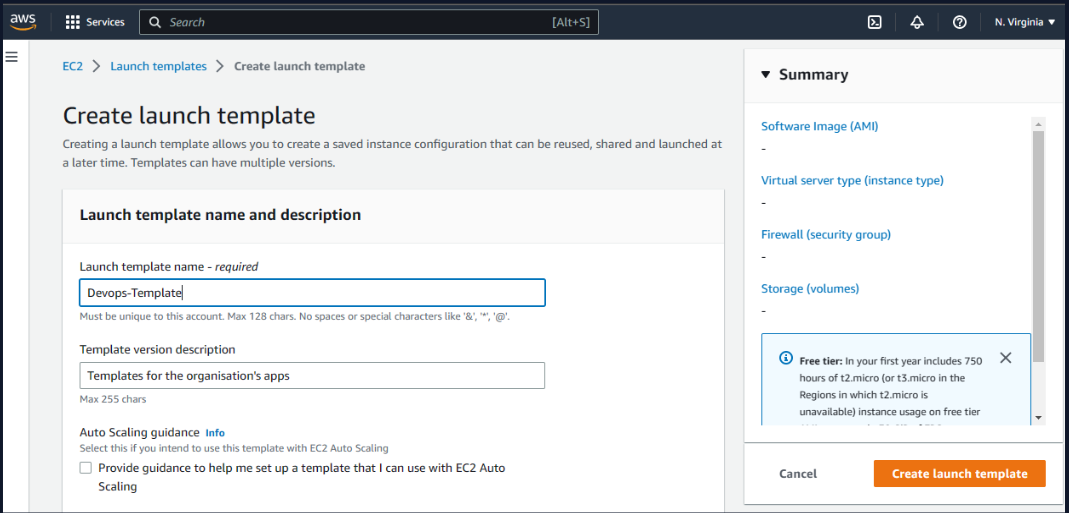
- Choose "Amazon Linux 2" under "Amazon Machine Image (AMI)"

- For "Instance type", choose "t2.micro"


- Paste the user data script for installing Jenkins and Docker in the "User data" field of the "Advanced Details" section.


- Choose "Create launch template" to start. The produced template is shown below.

Build 3 instances using the Launch Template; can you locate the option that displays the number of instances to be launched?
To use the launch template to launch three instances
Choose "Launch instance from templates" in the left navigation pane of the Amazon EC2 dashboard.

- Choose the newly built launch template.

Enter the desired number of instances in the "Number of instances" field on the right side. Choose the other setup options, such as VPC, subnet, security group, and so forth, as desired.
To start the instances, select "Launch instances."

- Three instances made from a template are seen.

You may take it a step further and make an auto-scaling group.
Choose "Auto Scaling Groups" from the left navigation pane.
"Create Auto Scaling Group" should be selected.

Give the auto-scaling group a name on the "Create Auto Scaling Group" page.
Choose the launch template we made earlier under "Launch Template."


- Choose the VPC and subnet you want the instances to launch in under "Network".

- Choose any option for "Load balancing" depending on your needs.

- Enter the desired capacity for the auto-scaling group on the "Group Size" tab, for example, 2.

- You can select to set up scaling strategies for "Scaling policies" based on several metrics like CPU use, network in/out, and others. Choose the tracking policy for the policy objective.


- To build the auto-scaling group, select "Create Auto Scaling Group".

- An autoscaling group is created.

- Based on the launch template and parameters you specified, the auto-scaling group will launch the required number of instances within a short while. The auto-scaling group launched the two new instances below.

Thankyou